
Advisor review tools
The advisor's control room
Separate progress bars for the client, the employer and your own review. One-click Mark complete and Mark as submitted. A case lock that opens only the item you just requested. A pipeline you can filter by who holds the ball — and a whole-case ZIP when it's time to file.
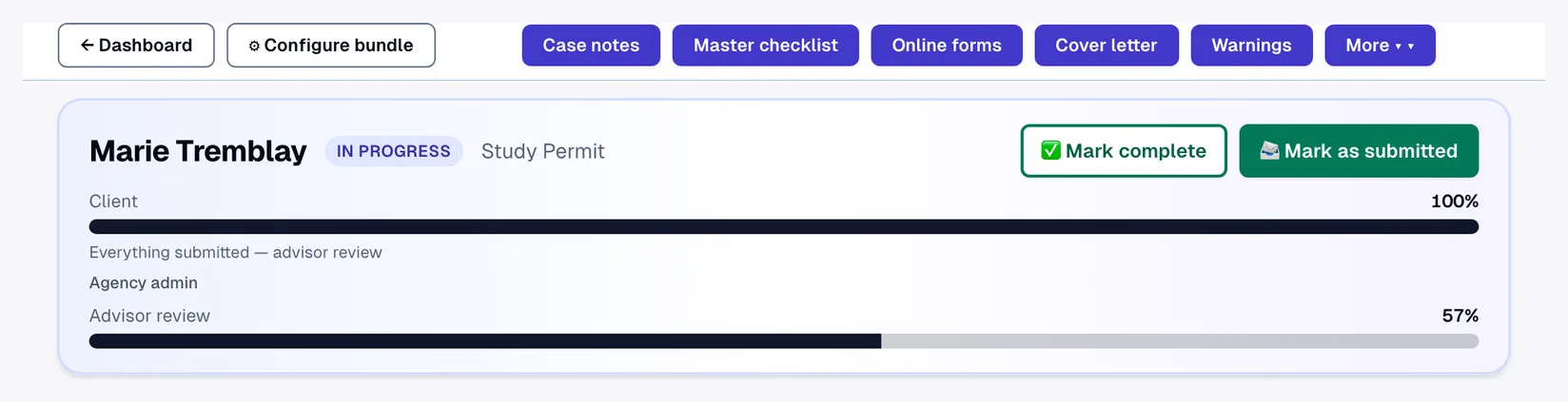
The client's work and the advisor's work are different jobs, and one blended percentage hides both. Lexova keeps them apart: the client bar reaches 100% when every form is submitted and every document is in; your review bar rises only as your team accepts each item. Around that sit the controls a reviewer actually reaches for — lock the file, reopen exactly one item, close the case, and find the next case that needs you.
How it works
See who has really finished
The case header shows a bar per stakeholder: Client, Employer (when one is linked) and Advisor review. "Everything submitted — advisor review" on the client bar means exactly that, whatever your review bar says.
Lock, request, reopen only what's needed
When the client submits their last form, the workspace locks against accidental edits. Ask for one more document or assign one more form and only that item opens — the client is emailed, the rest stays locked. A general Unlock is one click away for your team.
Close the case in one click
Mark complete sets every form and document row — all applicants, whole-application and employer items — to Completed and locks the client workspace. Mark as submitted does the same and moves the case status to Submitted, so the dashboard filter finally means what it says.
Why it matters
Ball-in-court filter
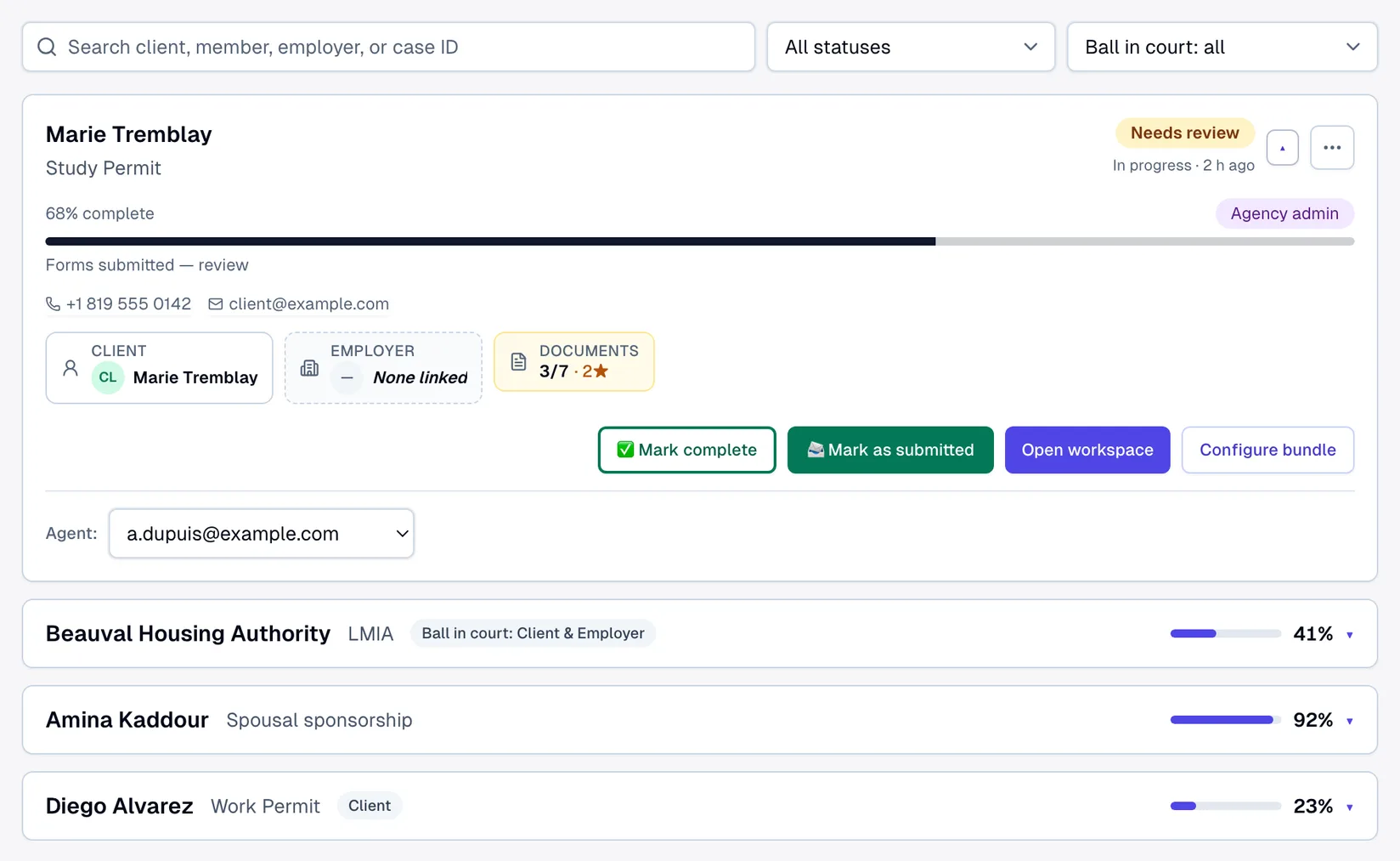
Show only the cases waiting on the client, the employer, an agent or the firm. A case blocked on two parties matches both.
Contacts on every tile
The applicant's phone and email — and those of any family member with different ones — sit on the case tile as tap-to-call and tap-to-email links.
Whole-case ZIP export
One download holds every applicant's filled IRCC forms, every document, the cover-letter draft and a manifest listing anything that could not be included.
Nothing hidden by a number
Per-form percentages count required fields, tables, conditional sections and open warnings — a form reads 100% only when it would pass submission.
The firm pipeline
The dashboard shows every case as one line — name, program, progress, a Needs-review badge and who holds the ball. Filter by status or by ball-in-court (client, employer, agent or agency admin), search by client, family member, employer or case ID, and expand a tile for the applicant's phone and email, the client / employer / documents strip, and the same Mark complete and Mark as submitted buttons you have in the workspace.
Frequently asked questions
Can I still change a single item after Mark complete?+
Yes. Both actions are bulk shortcuts — every row's status remains editable afterwards from the item dialog, and the client lock can be lifted with one click.
What can the client do while the case is locked?+
Read everything, and act only on the items you opened afterwards — a newly requested document, a newly assigned form or a new question. Everything else stays read-only until your team unlocks it.
What exactly is in the ZIP?+
A forms folder with each applicant's assigned IRCC forms filled in the requested language, a documents folder scoped to what the downloading role may see, the firm's prepared package and exhibits, the cover-letter draft as a PDF, and a manifest that names anything skipped rather than leaving it out silently.
Where do we keep the documents we request again and again?+
On the firm's own “Documents checklist” page, in the dashboard menu: every saved document with its instructions in both languages. Search it, add a document — typed in one language, the other is filled in for you — edit its name and instructions in English and in French, or delete it. One click then adds a saved document, instructions included, to any applicant's checklist; cases that already carry it keep their own copy.
Explore more
Run your firm on Lexova
Start today, or talk to us about Enterprise.